
How to run AI construction takeoffwith BuildVision AI
Upload a PDF plan set, click Detect, and get symbols counted and runs measured across the sheet set for you to review — the full AI takeoff flow, step by step.
Detects
Symbols and linework
Input
PDF or ZIP of plans
Output
Quote draft or CSV
The full AI takeoff flow, in nine steps
Every screenshot below is from the live BuildVision AI product. Open the app in another tab and follow along with your own plan set.
- STEP 01
Create a new project
From the Projects tab, click New Project in the top-right. If you already have a plan set as a PDF, drop it straight into the dialog — BuildVision AI will auto-create the project, ingest every page, and classify each sheet (Architectural, Structural, Electrical, Civil…) while you keep working.
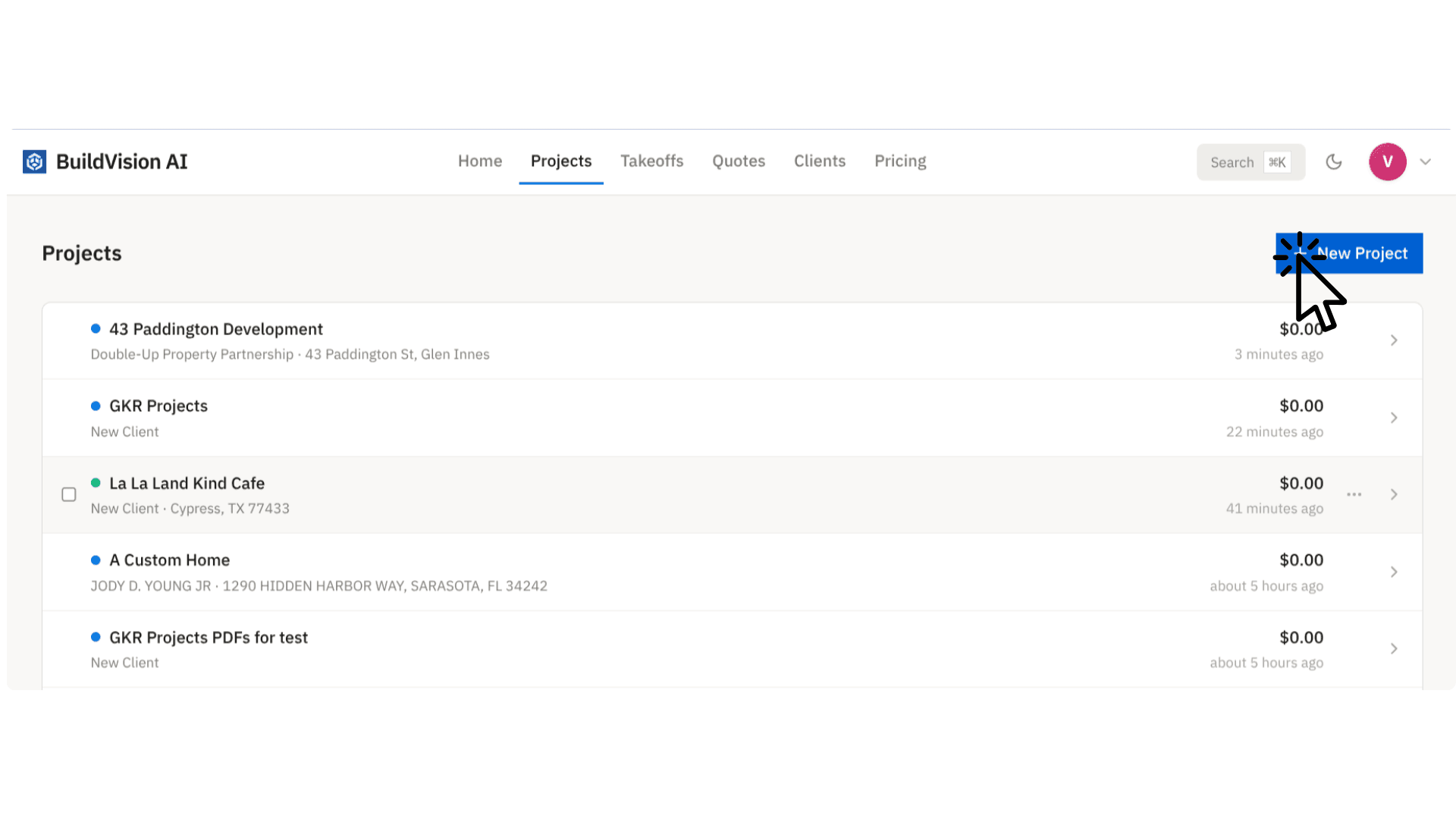
Tip: dropping a PDF here skips steps 1 and 2 entirely.
- STEP 02
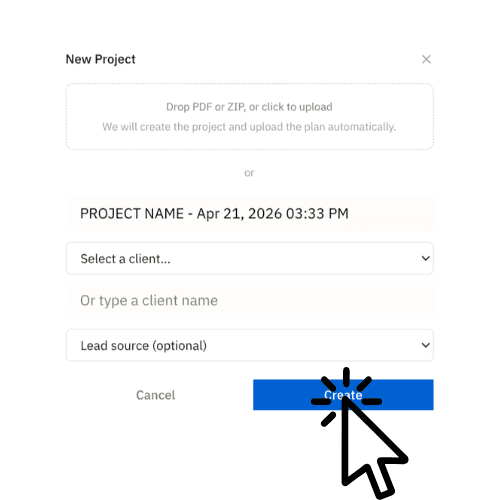
Name it, pick a client, and Create
If you didn't drop a PDF, fill in a project name and pick (or type) the client. Lead source is optional. Click Create and you're in.
- STEP 03
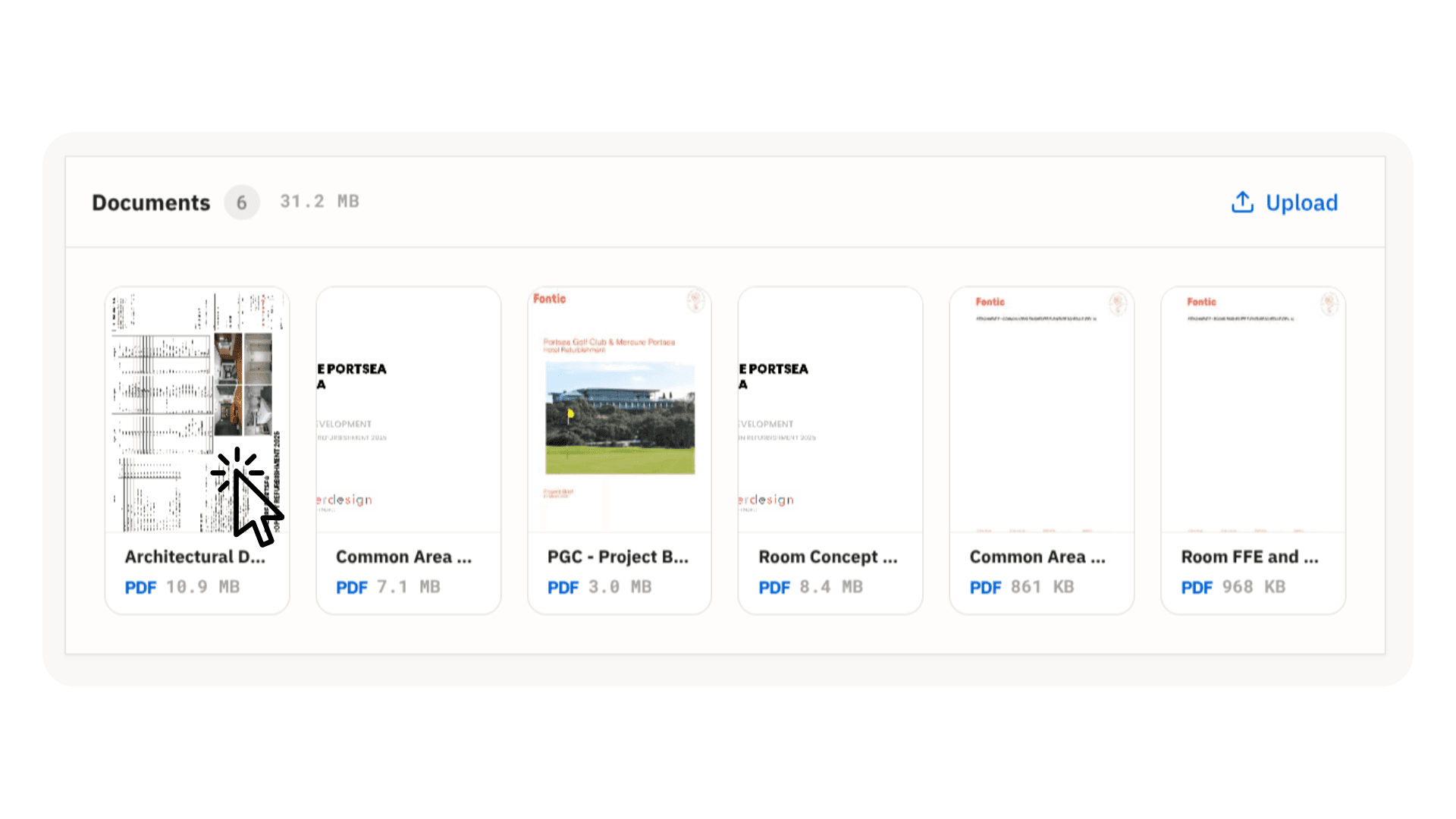
Open a plan from Documents
Inside the project, scroll to Documents. Every sheet you uploaded is here as a thumbnail. Click the plan you want to measure.
- STEP 04
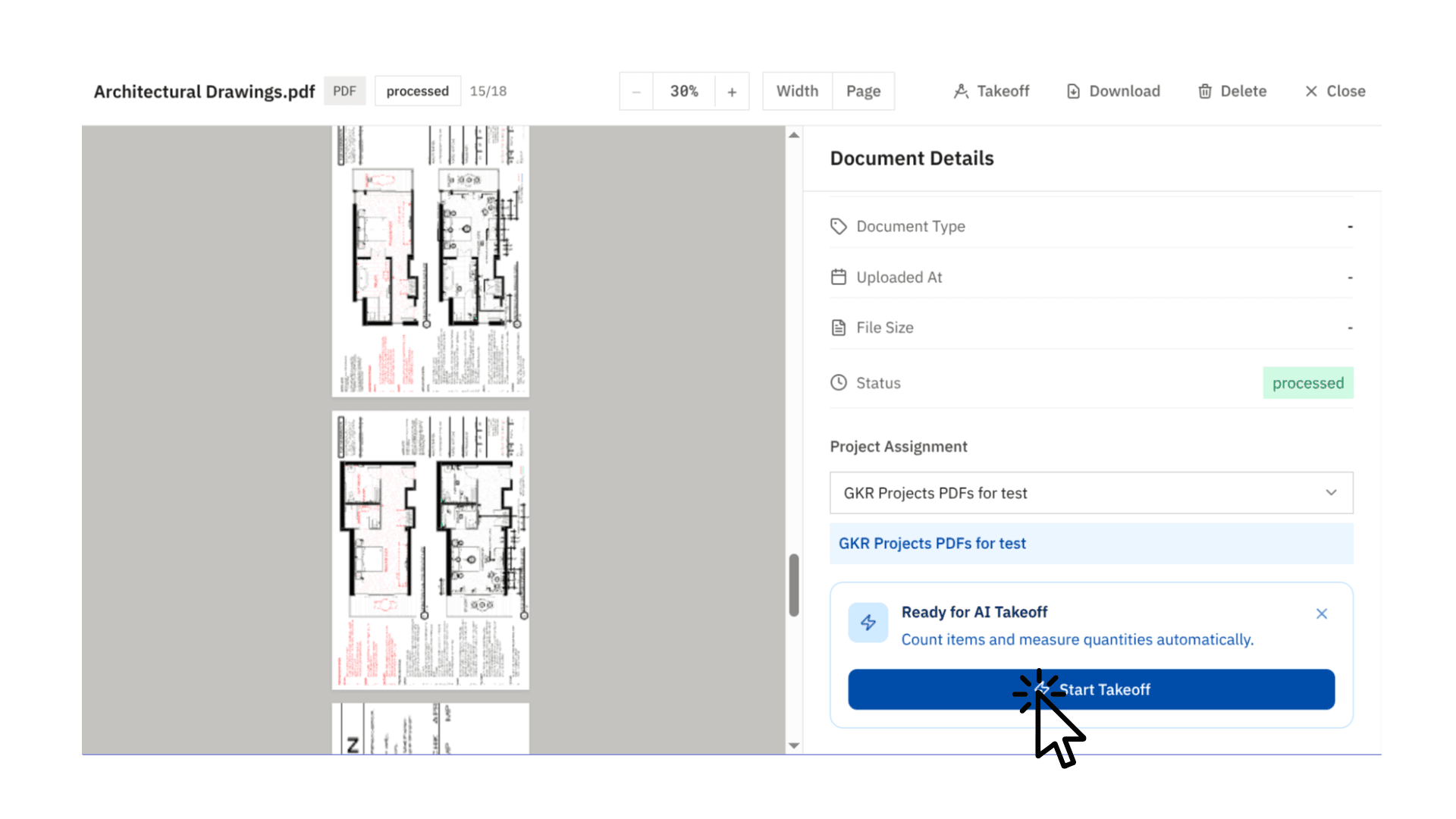
Start the takeoff
The document opens in a dedicated viewer. On the right, you'll see processing status — once it's processed, a Ready for AI Takeoff callout appears. Click Start Takeoff.
- STEP 05
Land in the takeoff editor
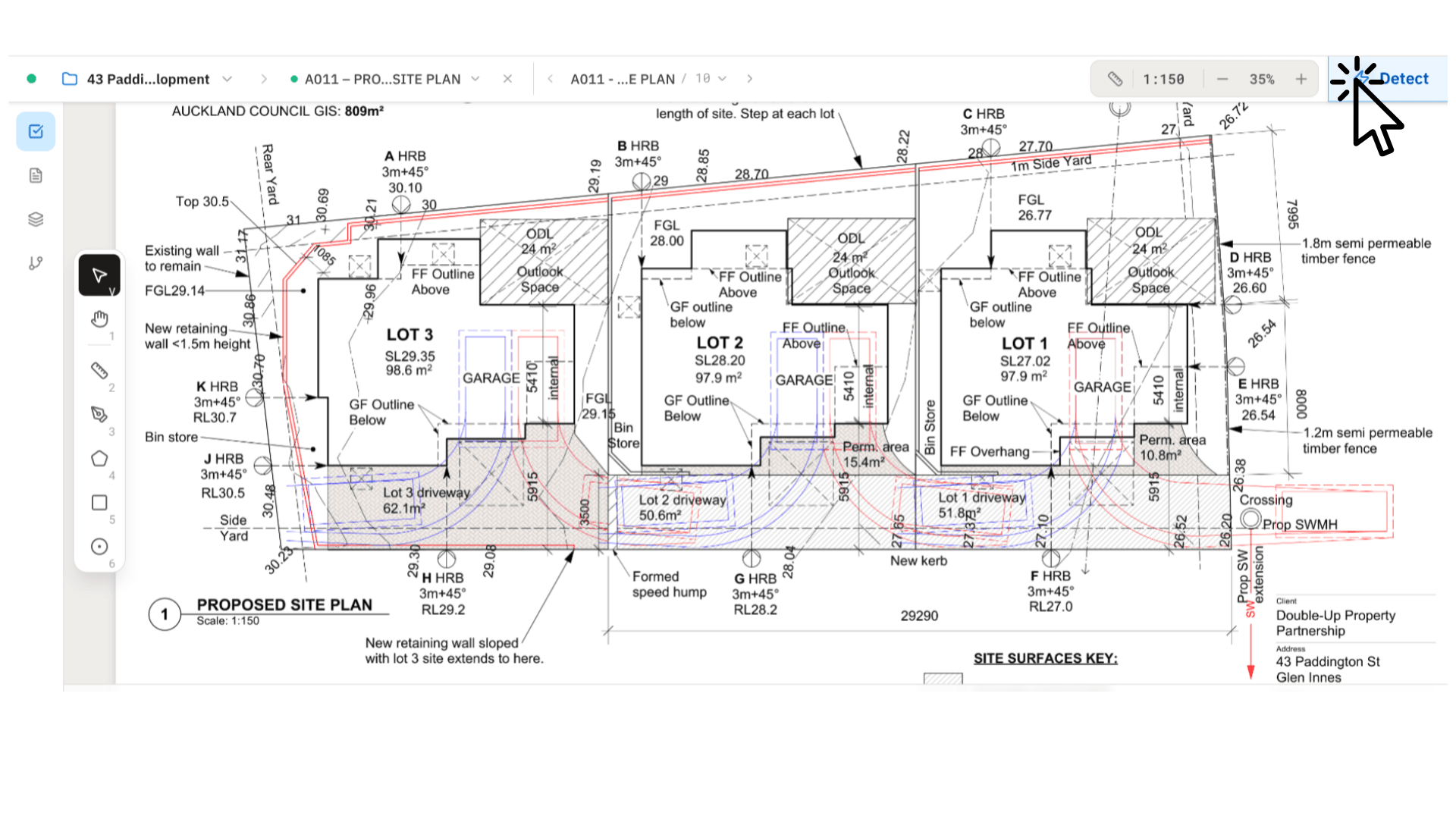
You're now in the editor. The active page fills the canvas, page navigation sits on the left, and the toolbar (zoom, fit-to-width, page jump, Detect) is up top.
- STEP 06
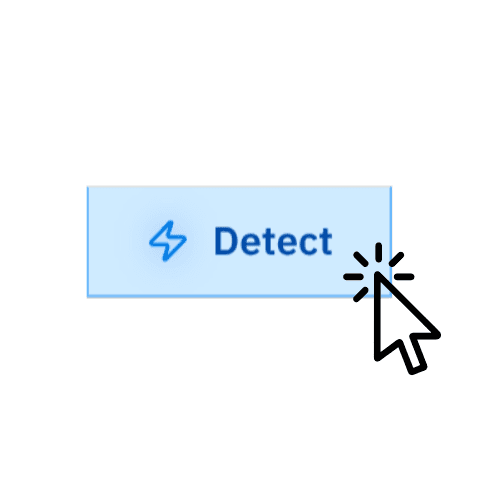
Click Detect
Hit Detect in the top-right to open the AI detection panel. This is where you tell BuildVision AI what to look for and where to look.
- STEP 07
Choose what to find
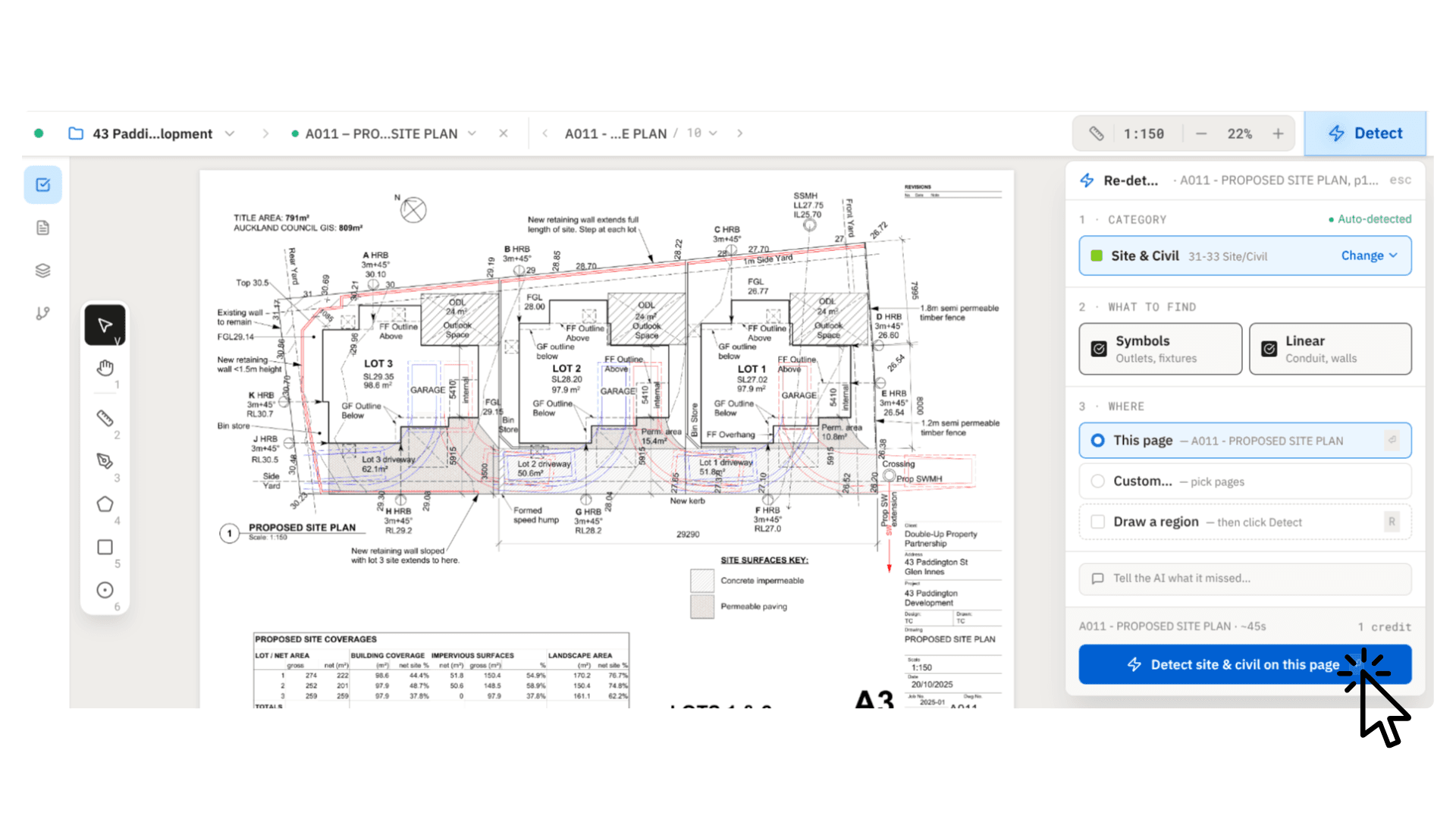
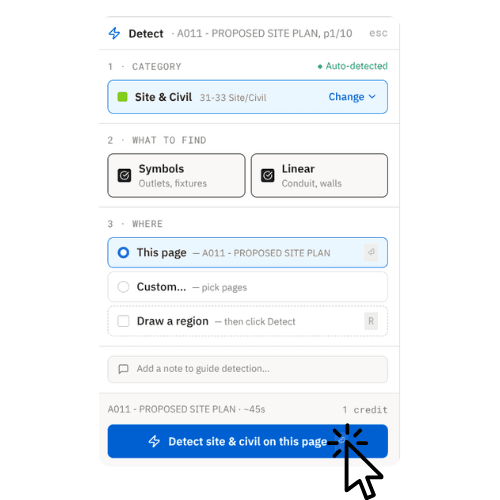
The panel opens on the right. BuildVision AI auto-detects the sheet category (Site & Civil, Electrical, Structural, Architectural…). Pick Symbols (outlets, fixtures, doors), Linear (conduit, walls, piping), or both.
- STEP 08
Scope: this page only
Quick-check a single sheet by selecting This page. Run detection and the symbols/lines on that sheet are measured and annotated for review. Great for a sanity pass before scaling up.
- STEP 09
Scope: entire discipline
For real estimating, switch to All [category] pages — e.g. All Electrical pages — and BuildVision AI runs detection across the full discipline in one batch. You'll see the time estimate and credit cost before it kicks off.
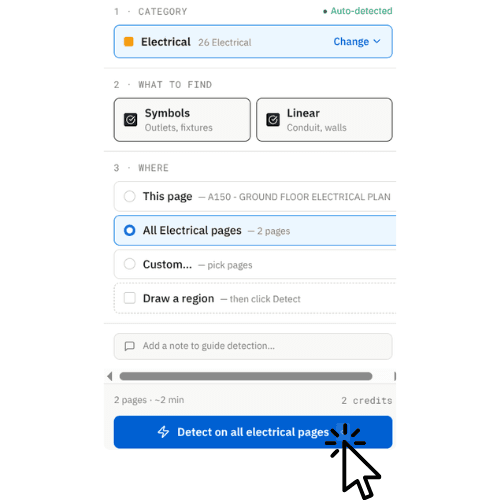
Pro tip: add a note like "only count duplex receptacles" to steer the model.
What happens after detection
Results land on the plan as color-coded annotations, grouped by type in the sidebar. From there:
Edit
Add, delete, or reclassify any item with the manual drawing tools.
Review
Flip through pages to spot-check coverage before sending to the client.
Export
Turn reviewed quantities into a quote inside BuildVision AI, or export CSV for another tool.
Frequently asked
What file formats does BuildVision AI accept?
PDF plan sets (single file or bundle). For multi-sheet sets, PDF is the native input — every page is auto-classified on upload.
Can I still edit what the AI detects?
Yes. Every detected symbol or line is editable — add, delete, reclassify, or re-measure with the manual drawing tools. The AI is the starting point, not the final word.
Does it handle multiple disciplines at once?
Yes. BuildVision AI auto-classifies each sheet (Architectural, Structural, Electrical, Civil…) and you run detection per discipline. You can scope a run to a single page, a whole discipline, or a custom subset.
How do I get the takeoff into a quote?
Send reviewed quantities to the project quote, or export them as CSV if you work in another estimating tool. Quantities, categories, and item counts carry through.
Try it on your next takeoff.
Book a demo, upload your real plans, and review the measured quantities.
Prefer the canonical docs version? Read it on docs.buildvisionai.com →